Ben & Steve were fortunate enough to be interviewed by Michael Boll for 21CL Radio. Below is the page for the show, embedded from the 21CL Radio web site. (Scroll down to see the entire page.)
Showing posts with label 2015. Show all posts
Showing posts with label 2015. Show all posts
Monday, June 1, 2015

Thursday, May 21, 2015
Packing Your Digital Suitcase

We're sorry to see you go, but we'd like you to take all of digital belongings with you. Follow these instructions to take all of your files from Google, Schoology, Atlas Rubicon, and clearing all of your information off the computer before you turn it in.
Don't forget to back up first!
This session covers moving files from the following KIS accounts to your personal accounts:
- Gmail
- Sites
- Blogger
- Drive
- YouTube
- Google+
- Calendar
- Atlas Rubicon
- Schoology (do not complete until end of year)
Thursday, May 14, 2015
One2World Revolution Week 2015 Starts Here
The Revolution... it's not 1:1 it's One2World
 The One2WorldRevolution is an opportunity to celebrate and share what has happened in the Grade 3-5 team since the start of 13-14. We designed the program with great emphasis placed on learning and the processes that are involved in this. We want students who are engaged, excited and deeply involved in the design and processes of learning. We want students to be communicating and engaging beyond the classroom walls. This is our vision for 1:World. There has been a revolution.
In 2015-16 our first group of One to World students will enter the Middle School. They will be required to have a MacBook as per usual, but unlike any previous intake, they will be armed and dangerous in the use of iPads. Serious skill and seriously different to previous years.
We have an exciting menu ready for you to participate.
- Student Team Presentations: Theme: "Learning we are passionate about and want to share with you..."
- Teacher presentations about effective strategies and uses of technology.
- Open Classrooms - During these sessions you are free to visit the classroom and gain a snapshot of life in that One2World classroom.
- Student Q&A Panel We have assembled a panel of Student Experts from our One2World team. They have a message for teachers in Middle and High School...
Session Structure:
4 days, 16 sessions (4 per day) - 8.20; 10.20; 12:35; 2.05 (i.e. regular Fish Bowl times)
Full session descriptions are below the schedule, so keep reading:
_revolutionschedule
One2WorldRevolution Monday May 18
8:20am Teacher Presentation: You Don't Know Jack - And That's Totally Cool! with Colleen McCabe in The Fish Bowl
An informal discussion, Q&A session for teachers. What to expect? What do you need to know and be prepared for? How will this change your instruction?
Bring to this session: Open Mind!
10:20am Open Classroom: Student Selected Showcase with Katie Fleetwood's Grade 3 Class
Come and see what's going on with Katie's class. Students will be showing various pieces of their work...and taking requests.
12:35pm Student Q&A Panel: Ask our Student Experts
2 panels of (student) experts has been assembled and await dialogue with their future teachers. Come and ask questions and meet students from our One2World classes. They have information to share with you about how they use technology...
2:05pm Teacher Presentation: Getting The Most Out Of Google Drawings In Your Classroom with Megan Godek
Learn how to use Google Draw with your classrooms to enhance student learning. You will be able to see how students can be creative while applying knowledge about standards. As a teacher you can make more creative assessments in which the students can manipulate. Google Draw allows students and teacher to have fun and be creative during the learning process.
Bring to this session: MacBook
One2WorldRevolution Tuesday May 19
8:20am Student Team Presentation: Immersive Storytelling via Touchcast with Brian and Murphy
Grade 4 students Brian and Murphy will combine their two creative passions to show students can make presentations AND stories come alive. They will use the Touchcast app to share how to use immersive storytelling in the classroom.
Bring to this session: Open minds!
Location - The Fish Bowl
10:20am Teacher Presentation: One2World: Lessons from the introduction of this program with Ben Summerton
The backstory to the introduction of One2World and iPads in the Elementary School
This is an abridged version of a session presentation from 21CL Hong Kong 2014. It explains how and why KIS introduced 1:1 iPads: the challenges and triumphs!
Location - The Fish Bowl
12:35pm Student Team Presentation: Minecraft and Google Sheets with Phillip and Brandon
Phillip and Brandon will be showing Google Sheets and how they've been using for math and then taking the data and building their store in MineCraft. This is a project of great passion and should not be missed!Bring to this session: smiles...!
Location - The Fish Bowl
2:05pm Student Team Presentation: Drawing, Building, and Posting in the Classroom with Hannah and Yeoni
Grade 5 students Hannah and Yeoni will go over the benefits of using Google Draw, Minecraft, and Blogger in the classroom. They will show how it has been used this year and brief overviews of how to use each product on either iPads or MacBooks.
Bring to this session: Macbook and iPads
Location - The Fish Bowl
One2WorldRevolution Wednesday May 20
8:20am Student Team Presentation: iBooks: Researching and Publishing a Non-Fiction text with AJ, Ahmad, Connor, Camilla, Aiva and Sarah
Grade 3 students AJ, Ahmad, Camilla, Aiva and Sarah will share how they used their iPads to research a chosen topic in order to write a nonfiction text. They will then share how they used iBooks Author to publish their book and then how they share this with themselves and published the text in iBooks. The rest of the class will be positioned throughout the room to share their iBook and to answer any questions.
Location - The Fish Bowl
10:20am Student Team Presentation: Freedom of Choice - Creation & Innovation with Minwoo
In a recent Civil War project, students were offered six different tasks or problems to solve. They formed groups and chose the task or problem they were most interested in. They then used any tools, devices, resources to complete the task or solve the problem. Grade 4 student Minwoo will give an overview of that structure and then share what his team completed.
Location - The Fish Bowl
12:35pm Student Team Presentation: Reading Rotation Activity with Google Drive with Yoonseo and Christie
Grade 4 students Yoonseo and Christie will be showing how to use Story Cubes on Google Drive, on the iPad. They will explain their literacy activity by demonstrating and inviting participating in a short activity.
Bring to this session: Imagination
Location - The Fish Bowl
2:05pm Open Classroom: The Civil War with Colleen McCabe's Grade 4 Class
Students will be using technology as they see fit - research, creation - some will have products that feature no technology, others will have only technology, while others will have a mix of both. This is authentic technology integration where technology does not occupy centre-stage.
One2WorldRevolution on Thursday May 21
8:20am Teacher Presentation: Happy Apps with Molly Rance
I'll introduce this concept, talk about why and how it works, and do a quick run-through with the participants so they can try it out!
Bring to this session: Your iPad (but iPads will be available to use if you don't bring one)
Location - The Fish Bowl
10:20am Open Classroom: Historical Writing with Megan Godek's Grade 5 Class
We will be using Touchcast to finalize historical writing pieces.
12:35pm Student Q&A Panel: Ask our Student Experts
A panel of (student) experts has been assembled and await dialogue with their future teachers. Come and ask questions and meet students from our One2World classes. They have information to share with you about how they use technology...
Location - The Fish Bowl
2:05pm Teacher Presentation: Explain Everything: Explained with Amalia Kingsbury
Explain Everything is an easy-to-use interactive whiteboard and screen-casting tool. You can annotate, animate, narrate, and import almost anything into your presentations. And best of all you can share to almost anywhere.
Location - The Fish Bowl
The Revolution... it's not 1:1 it's One2World
 The One2WorldRevolution is an opportunity to celebrate and share what has happened in the Grade 3-5 team since the start of 13-14. We designed the program with great emphasis placed on learning and the processes that are involved in this. We want students who are engaged, excited and deeply involved in the design and processes of learning. We want students to be communicating and engaging beyond the classroom walls. This is our vision for 1:World. There has been a revolution.
 - Student Team Presentations: Theme: "Learning we are passionate about and want to share with you..."
- Teacher presentations about effective strategies and uses of technology.
- Open Classrooms - During these sessions you are free to visit the classroom and gain a snapshot of life in that One2World classroom.
- Student Q&A Panel We have assembled a panel of Student Experts from our One2World team. They have a message for teachers in Middle and High School...
One2WorldRevolution Tuesday May 19
Location - The Fish Bowl
Location - The Fish Bowl
Location - The Fish Bowl
2:05pm Student Team Presentation: Drawing, Building, and Posting in the Classroom with Hannah and Yeoni
Location - The Fish Bowl
Location - The Fish Bowl
Location - The Fish Bowl
One2WorldRevolution on Thursday May 21
Location - The Fish Bowl
10:20am Open Classroom: Historical Writing with Megan Godek's Grade 5 Class
Location - The Fish Bowl
Location - The Fish Bowl
Wednesday, May 6, 2015
One2World Technology Integration and Innovation Showcase: Callout for Presenters
In 2015-16 our first group of One to World students will enter the Middle School. They will be required to have a MacBook as per usual, but unlike any previous intake, they will be armed and dangerous in the use of iPads. Serious skill and seriously different to previous years.
Proposal to all O2W teachers and students:
We have 16 regular Fish Bowl sessions which we thought we would like to give you and your students the opportunity to showcase your work, in particular for the benefit of our MS teachers. (Teachers please note that Friday May 22 is Sports Day!)
Sessions Types:

- Teacher presentations about an effective use of technology that is integrated (I have heard so many of these this year...please consider sharing. 10-40 mins, you choose)
- Students Team Presentations. Theme: "Learning we are passionate about...". This is a formal/semi-formal presentation that has structure to it. It could also follow more of a Workshop type format too though.
- Open Classroom - where teachers and admin visit your classroom and showcasing technology integration. A snapshot of life in your classroom.
+ Student Panel EdTech plans on assembling a 9 person student panel to respond to questions or topics raised by teachers who attend. The student panel will scheduled to occur twice during O2W Week. You can nominate up to 3 students to participate per Form submitted.
You can submit a Form for each of these opportunities. If you decide to enter your own presentation, as well as an offer to host an Open House, you will need to submit this form twice in that case.
Session Structure:
4 days, 16 sessions (4 per day) - 8.20; 10.20; 12:35; 2.05 (i.e. regular Fish Bowl times)
You will have the opportunity to let us know what would work for you though.
Obligation to participate?
No. None whatsoever. But it will be a great way to celebrate and share your successes and experiences if you do!!
Sunday, April 19, 2015
>_automatic

This is a professional development opportunity that is for any Mac, iOS or Android user. Welcome to >_Automatic - a 2 Week session that perhaps unsurprisingly focusses on automation!
Goals
Introduce ways to make your digital work/social life more efficient and walk away with some tangible 'gains'.
Who is this session for?
People who are ready to take ordinary tasks, and automate them. It's also for the tech curious!
We therefore dive into 3 levels of automation:
Week 1
IFTTT - the innovative and clever service (brought together with the IF App for iOS and Android) links together many of your favourite social media and broader internet sites - delivering automated tasks and information retrieval. It's actually quite fun to dive into the IFTTT 'recipes', and you too can create your own. Simple to use, easy to setup. For participants in The Fish Bowl this week, we may not make it beyond IFTTT...40 mins disappears quickly in this universe.Week 2
Automator - This native App to the Mac coordinates applescript with a tidy UI (user interface). It looks daunting at first glance, but we will guide you through some processes that will perform common tasks such as shrinking a PDF with no loss of quality; merging PDF files into a single file; converting image types; pulling text from PDF files; converting to PDF...actually the Automator options here mostly relate to PDFs. Whatever the recipe, Automator can take all the repetitive legwork out by creating automatic processes that you normally do manually.Extension
AppleScript - Offered as an extension in this session, we offer a look at this form of programming language that is one of the simplest languages to understand, mainly because it so closely resembles regular prose. Great for people who are curious and requires no experience in scripting languages.Some of our IF recipes from this session (watch this space...!)
Friday, April 10, 2015
Advanced Google Forms

We are pumped on Google Forms at KIS!! Some of the topics this workshop will cover are:
- Customizing Forms
- Adding photos and videos
- Collaboration on Forms and/or Responses
- Collecting user data
- Answer-based branching
- Notifications
- Conditional formatting
- Creating and embedding charts
- Use of spreadsheet functions
- A variety of add-ons
Take the survey, and check out the presentation below.
View the complete survey responses. (KIS email required)
Charts showing data from responses:
Monday, March 30, 2015
Under The Sheets - Google Spreadsheets Tutorial
This professional development session, designed and created by Rick Mallon, has been created for our educators and business staff at Korea International School, but free for anyone else wanting to access this material of course.
This Session includes:
- Spreadsheet basics
- calculate with formulas/functions
- manage data from Google Forms
- Format cells
- Build charts
- Generate and sort data from PowerSchool
- Basic scripts

Friday, March 13, 2015
Storage in the Cloud
.png)
Cloud storage is an awesome option for students and teachers who don't have enough storage space on their laptops or mobile devices. Cloud storage services will allow you to access all your files anywhere (desktop, phones, laptops, or tablet), share files with your colleagues, and organize them in folders or albums. Additionally, if your computer ever crashes or gets destroyed, you will still have access to your files on your different cloud storage services.
This week we will focus on the following cloud services: Dropbox, Google Drive, Box, YouTube, Flickr, and ODrive.
Coming Soon: Packing your Digital Suitcase. (For folks leaving KIS this year) Here is the link to last year's presentation.
Sunday, March 8, 2015
Schoology Updated
Schoology Updated


This session brings to foreground some of the recent changes and improvements to Schoology since our last PD session. Information sourced for this PD is in fact borrowed largely from the Help Centre.
Follow the Schoology blog for all the latest Schoology information and updates.
Thursday, February 26, 2015
Touchcast - Smarter than video

Touchcast is built on HTML5 code, and it uses the iPad’s built-in camera, a useful collection of widgets (called vApps which are video-apps) and a timeline editor to help users to produce video productions reasonably quickly.
How is TouchCast Different to YouTube?
TouchCasts are immersive and interactive. With the exception of inserted weblinks, YouTube videos are not. They are linear, sender-to-receiver experiences.
Touchcast reverses this inserting all this other media (websites, social media etc) inside the TouchCast video itself. The video is the central platform for all the content used by the teacher and/or student. It's video, but smart video.
Equipment
TouchCast is an App available only for iPads (2nd Generation and up). TouchCasts are available for viewing from http://www.touchcast.com/
Download the TouchCast app.
Ideal additional equipment:
- Tripod
- Access to a Green Room (this is used in a number of the TouchCast 'Casts')
- Microphone for iPad
Resources
Download a Touchcast Planning and Scripting Template (.pages format)
Download the official Touchcast Teacher training document

The following examples are our first attempts at KIS. Thank you to Ms Rance and Ms McCabe for sharing these samples of student work. They did really well, and this Fish Bowl PD is in large part a by-product of the collaborative learning that took place with these talented students.
http://touchcast.com/mccallahan23/96a2be6aaf/?ref=search&q=#kismccabe
http://touchcast.com/tckamthi23/eb9444f318/?ref=search&q=#kismccabe
http://touchcast.com/ian_kim_4b/e15ef90351/?ref=search&q=#kismccabe
http://touchcast.com/ckoo23/4b_social_studies_kismccabe/?ref=search&q=#kismccabe
http://touchcast.com/iazamyatin23/f00dc65676/?ref=search&q=#kismccabe
http://touchcast.com/tckamthi23/eb9444f318/?ref=search&q=#kismccabe
http://touchcast.com/ian_kim_4b/e15ef90351/?ref=search&q=#kismccabe
http://touchcast.com/ckoo23/4b_social_studies_kismccabe/?ref=search&q=#kismccabe
http://touchcast.com/iazamyatin23/f00dc65676/?ref=search&q=#kismccabe
Sunday, February 22, 2015
iBooks Author - The 12 Step Program for Classroom Success

This week in The Fish Bowl, we present a session that is the result of considerable request. This is our 12 Step Program to using iBook Author, either for personal use or for use in the classroom. Tried and tested in the classroom, we hope you find the presentation a useful resource for you and your students.
Objective:
- Understand the components of an iBook and be able to in turn teach students how to create one.
- All participants to create an iBook using the provided assets (see screenshot below).
Session Overview:
You will create the basic framework of an interactive iBook. Content will be extremely basic, and will use supplied assets.
Content:
- Please feel free to take a copy of the presentation and use/modify for your own classroom/PD purposes - http://bit.ly/1AhbO46
- Download this folder. It contains the assets used for assembling your basic iBook using iBooks Author - http://bit.ly/1Lvva9g
Resources to help get the most out of your iBook experience:
Formatting images for iBook
5 Reasons to try iBooks
Tips for Motivating Student Writers with iBooks Author
Monday, February 9, 2015
Create an online ‘textbook’ with Flipboard

This Professional Development opportunity presents an idea that I came across while at Learning 2.014 (courtesy of Jeff Utecht). As a longtime Flipboard user, the use of Flipboard always seemed geared mostly towards individual consumption of news, blogs and social media feeds.
Flipboard presents content in a beautiful way. But in this session, we show you how to use Flipboard for classroom learning. It's simple and intuitive.
The premise quite simply is to create a Flipboard Magazine, and then clip content from across the internet into it. It's easy and fast to do this. The great part though is that not only can people 'Follow' your Magazine, but if invited, can contribute to it as well in a collaborative manner.
For the teacher, used to posting links to various individual pieces of content to students through Learning Management Systems such as Schoology (as is the case at KIS), this provides the 'Curation' add on.
Session Objective: Create a Flipboard Magazine, add Content, and Share.
Friday, January 30, 2015
Create, Share, Remix: YouTube Editor
Create movies with YouTube Editor
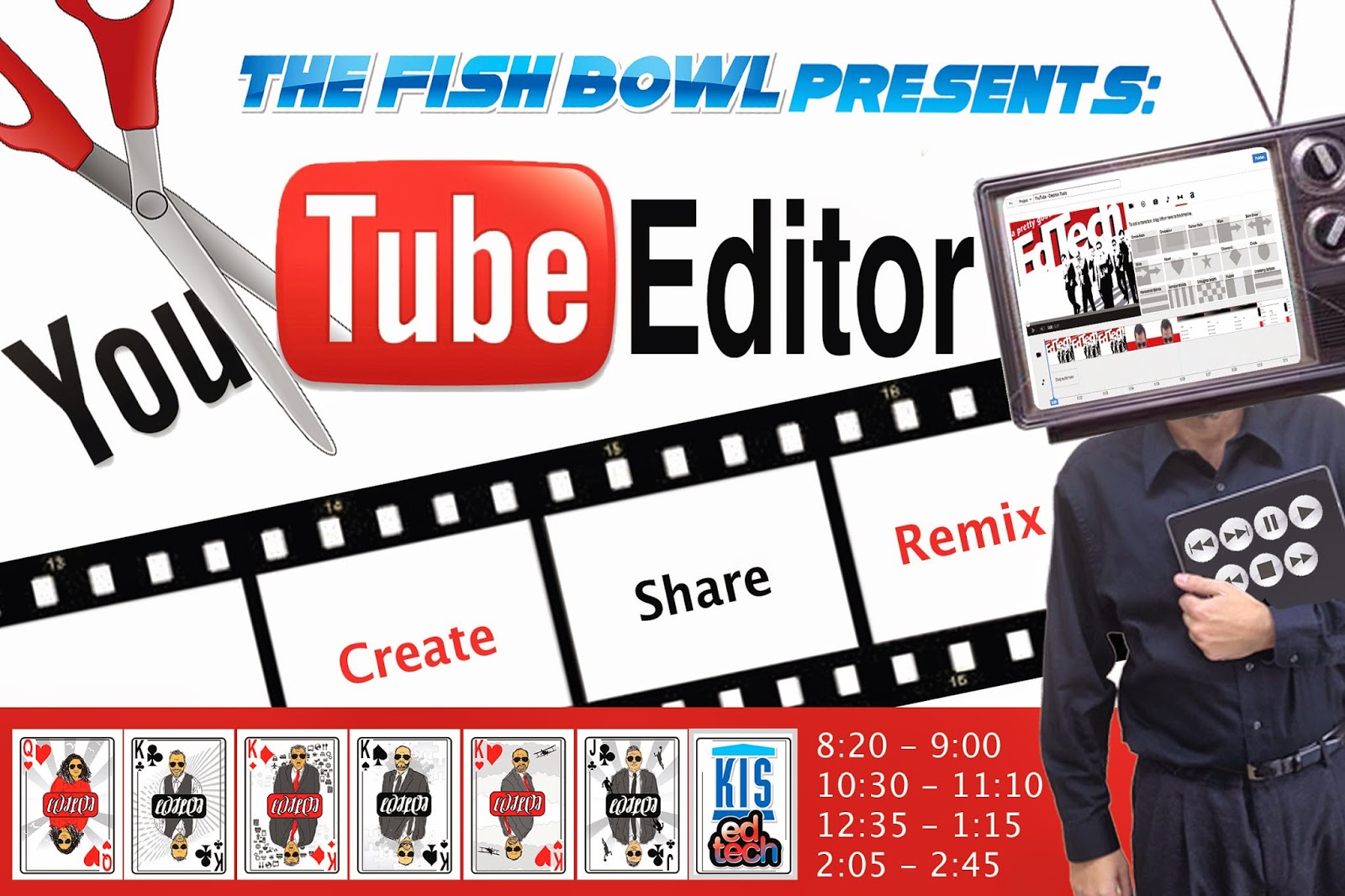
Goal: Prepare teachers to teach students to use YouTube Editor.
Resources:
Set up your YouTube channel
YouTube Editor
YouTube Capture App for iOS
Creative Commons Licenses
Some ideas for projects with YouTube Editor:
- Nature video
- Crowd sourced video
- Take a look at what was created last year at Beyond Laptops (below) by remixing crowd sourced movies from the conference.
Thursday, January 22, 2015
Strength in Diversity - Workshops

Strength in Diversity- Join us this week as the KIS Student Support Team presents a diverse menu of hands-on workshops that will help you reach your students at every level. Walk away with concrete, practical tools that you can immediately apply in your classrooms.
| Monday | Tuesday | Wednesday | Thursday | Friday | |
| 8:20 | Paulson: Differentiating with Lexile Levels | C. Canales Teacher v. Student Behavior | H.Hale: ABC Guide for Teacher & TA Collaboration | Paulson: Differentiating with Lexile Levels | |
| 10:30 | K.Callahan- English Language Learners and Technology Tools | H.Hale: ABC Guide for Teacher & TA Collaboration | A. McCullough Fun with Phonetics Understanding speech sounds of all languages | H. Jun- Recognizing and Facilitating Executive Function Skills in the classroom | A.McCullough- Caring for your "Teacher Voice" |
| 12:35 | C. Canales Teacher v. Student Behavior | A.McCullough- Caring for your "Teacher Voice" | |||
| 2:05 | H. Jun Recognizing and Facilitating Executive Function Skills in the classroom | K.Callahan- English Language Learners and Technology Tools | A.McCullough- Fun with Phonetics- Understanding Speech sounds of all languages |
Teacher v Student Behavior
Christine Canales
This session will highlight several positive behavior supports that teachers can implement in their classrooms to increase desired behaviors and decrease disruptive behaviors. Some strategies and tools that will be highlighted include the use of technology to incorporate brain breaks/movement breaks into instruction as well as a fun, online behavior application that allows for immediate parent communication.
English Language Learners and Technology Tools
Karen Callahan
How can we use technology as a scaffold to help our English Language students succeed? What are tools that can help my EL students have the same access to content? This session is about helping our ELs gain a grasp on the English language and helping them display their content understandings through technology.
<Presentation Below>
<Presentation Below>
Caring for your “Teacher Voice"
Angie McCullough
Calling all coaches, singers, and orators: come and learn healthy habits to make your “teacher voice” all it can be. If you use your voice as a professional tool, this session is for you! Preventative care and other techniques will be taught and practiced during this session.
Fun with Phonetics
Angie McCullough
Want to help students reduce heavy accents, correct a speech sound, or increase intelligibility? Join me for a quick and dirty way to learn about sounds of ALL languages.
Recognizing and Facilitating Executive Function Skills in the Classroom
Helen Jun
Studies show that when children learn key life skills based on executive functions of the brain, they are more likely to thrive now and in the future..." Let's explore the topic of Executive Function Skills and how it could add another perspective in assessing your students.
Differentiating with Lexile Levels
Emily Paulson
Join this session to collect strategies on evaluating and selecting appropriate reading material for your students. We will learn several lexile leveling tools that can be utilized to diversify reading content and enable students to perform research at their comprehension level.
ABC Guide for Teacher and TA collaboration
English Language Learners and Technology Tools
<Presentation Below>
ABC Guide for Teacher and TA collaboration
Heather HaleABC Guide for Teacher and TA collaboration- Have a TA in your classroom? Join me to effectively and efficiently collaborate with your assistant in order to make the most of your resources.
Presentations and Resources:
English Language Learners and Technology Tools
Karen Callahan
Differentiating with Lexile LevelsEmily Paulson
Monday, January 19, 2015
Advanced Google Search II: Beyond the Dojo

The following post provides the materials and process for this professional development session for teachers and students.
This is a guide to do more advanced searching using the Google search engine, we do not dive into all features, but have selected out some especially useful ones. More will be covered in The Fish Bowl for KIS teachers choosing to attend.
Time: 30-40min
Type: Workshop
Bring: Computer or iPad
Preparation: Get a copy of the presentation
Even More:
Some Lesser Known Searches
14 Ways Students Can Get More Out of Google
Google Like a Boss
Subscribe to:
Posts (Atom)
Popular Posts
-
Note: The following presentation is from the 7th Annual 21C Learning Hong Kong Conference 2014. Presented on December 12 and 13 by Ben Summ...
-
 Want easy tools to make awesome displays? Want students to output data collected in an interesting way? How the heck do I get that big ...
 -
 This is a professional development opportunity that is for any Mac, iOS or Android user. Welcome to >_Automatic - a 2 Week session tha...
 -
 Goals: Create comments under C1 Reporting Term in GradeBook Learn how to create a Comment Bank in GradeBook Target Audience: This s...
 -
 In 2015-16 our first group of One to World students will enter the Middle School. They will be required to have a MacBook as per usual, b...
 -
 I love Photoshop. I have a confession. I like Photoshop, and I'm self taught. I'm a geek, and I taught myself. I might be ...
 -
 Thursday March 9, 2017 09:00 - 16:00 Hong Kong Convention and Exhibition Centre Steve Katz & Ben Summerton How can we make profess...
 -
In the Fishbowl this week learn about PowerTeacher Comment Bank . In PowerTeacher Gradebook , you are able to add comments to your ...
-
 We are pumped on Google Forms at KIS!! Some of the topics this workshop will cover are: Customizing Forms Adding photos and ...
 -
 This year, my school purchased not one, not two, but five 3D printers. All of them, the same model, the XYZ DaVinci Duo printer . As a...

